Switch models in the middle of a conversation
Stay on Auto most of the time, pin a specific model when you want one, then switch back — your chat history and attached files come with you.
 VIGPT Team2 min read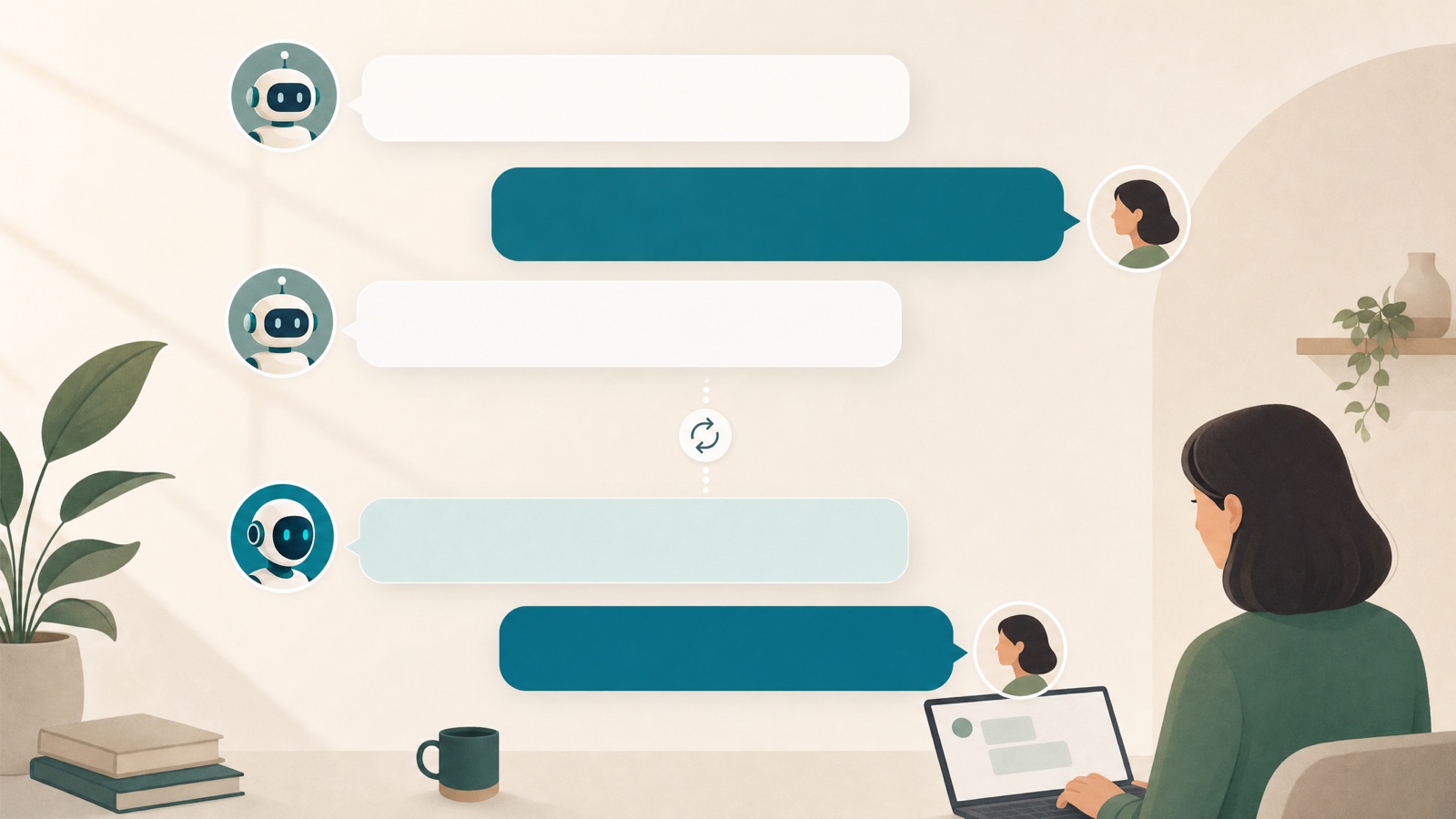
On this page
Most of the time, Auto is the right call — it reads each message and picks a model for you. But now and then you want one specific model for a stretch: the same voice across a long draft, a model you trust for code, or a side-by-side comparison. You can switch anytime, and the conversation stays intact.
The model button in the message bar
Below the box where you type, there's a button showing the current model. Click it and a picker opens. Auto sits at the top, marked Recommended — pick it to let Auto keep choosing. Below that, models are grouped by provider; pick any one to pin it.
You'll only see the models your plan includes. Anything above your plan shows as locked and links to pricing.
Why pin a model
Auto is a good default, but a fixed model has its moments:
- Keep one model's style and tone across a whole draft.
- Stick with a model you trust for a specific job, like code.
- Ask the same question of two models and compare the answers.
The pin holds until you change it — even in new chats — so you're not re-picking in the middle of a task.
Your history and files come with you
Switching the model doesn't start a new chat. Everything already in the conversation stays: the messages, and any file you attached. So you can attach a PDF, ask a few questions on Auto, pin a model, and keep asking about the same file — with no need to attach it again.
One caveat: only models that read documents and images can see your attachments. If you pin a model that can't, you'll get a prompt to switch to one that can. Staying on Auto sidesteps this — it already knows your message has a file.
Going back to Auto
Because a pin sticks, going back to Auto is a deliberate step: open the same button and pick Auto at the top.
If you don't want to pin at all but still want to nudge things, you can lean Auto toward saving or toward best quality from an answer's explanation — without locking to a single model.
Change just one answer
Sometimes you like Auto in general but want to see a different model on one reply. Open the explanation on the assistant's latest answer, from its avatar, and choose Try another model. That re-runs only that answer — with a model you pick, or Auto again — and leaves the rest of the conversation on whatever you had. It's the quickest way to compare without committing to a switch.
In short
Stay on Auto, pin a model when a task calls for it, and switch back when you're done. Your history and files follow you either way, so the switch costs you nothing.
Related posts
- Guides
The complete newcomer's guide to VIGPT
New to VIGPT? This guide takes you from signing in to your first useful tasks in a few minutes — plain, no jargon.
2 min read - Guides
Compare several models on the same question
Most of the time, Auto's pick is the answer. But for judgment calls and high-stakes work, it's worth putting the same question to a few models. Here's when that pays off and how to do it.
4 min read - Guides
Getting started with video generation in VIGPT
Video generation in VIGPT is a Pro and Max feature. This guide shows how to switch to video mode, what to write, how to pick the aspect ratio and duration, and how to get the result, which arrives asynchronously.
4 min read