
Guides
The complete newcomer's guide to VIGPT
New to VIGPT? This guide takes you from signing in to your first useful tasks in a few minutes — plain, no jargon.
2 min read
Category
Step-by-step tutorials and practical how-tos for VIGPT.
11 posts
New to VIGPT? This guide takes you from signing in to your first useful tasks in a few minutes — plain, no jargon.
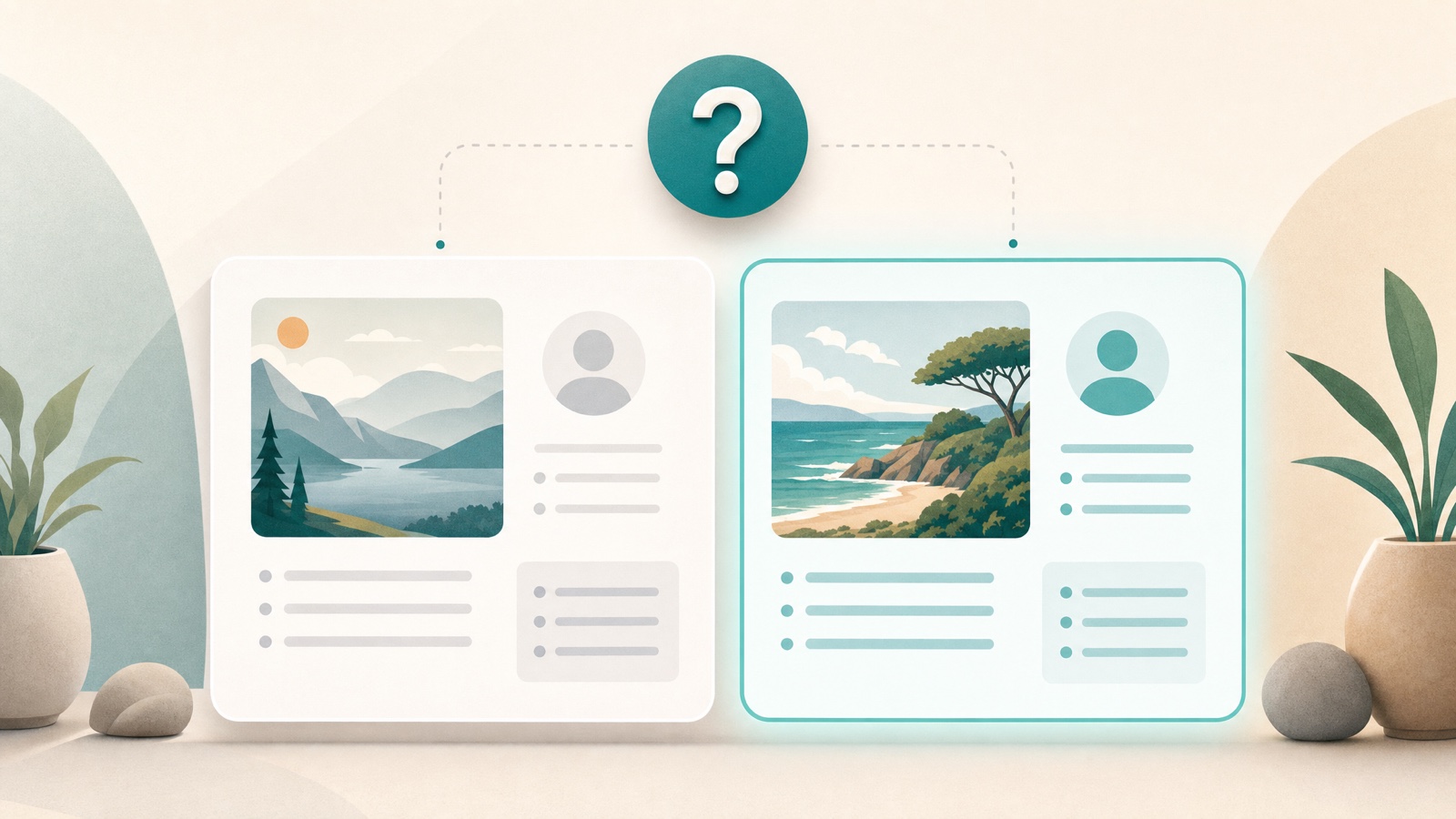
Most of the time, Auto's pick is the answer. But for judgment calls and high-stakes work, it's worth putting the same question to a few models. Here's when that pays off and how to do it.

Video generation in VIGPT is a Pro and Max feature. This guide shows how to switch to video mode, what to write, how to pick the aspect ratio and duration, and how to get the result, which arrives asynchronously.
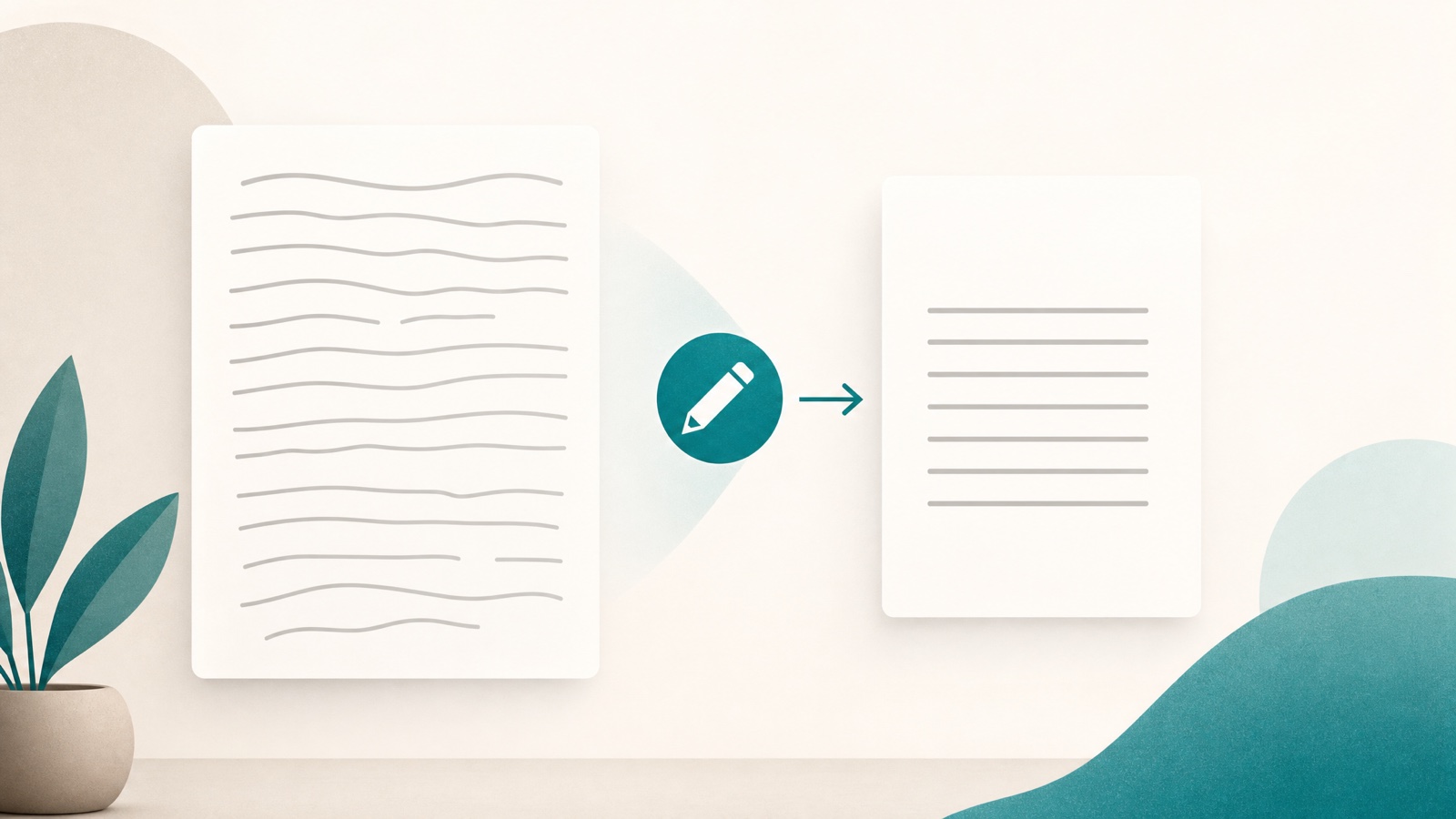
Shorten, clarify, change tone, fix mistakes, and translate. With example prompts, this guide shows how to take a piece of text you already have and shape it into what you want in VIGPT.

One shared wallet, a dedicated plan for each member, and one console to manage everyone. This guide walks through setting up an organization workspace in VIGPT, step by step — from requesting one to assigning member plans.

Image generation in VIGPT starts from text. This guide shows how to switch to image mode, write a good prompt, pick an aspect ratio, get up to 4 images, and adjust the advanced parameters on Max.

The quality of an answer usually tracks the quality of the request. These seven simple habits make your prompts in VIGPT sharper — and the results closer to something you can actually use.

Stay on Auto most of the time, pin a specific model when you want one, then switch back — your chat history and attached files come with you.

Auto already picks a good model on its own. One small preference tells it how to lean when the call is close — toward saving credits, staying balanced, or the best model your plan includes.